> ## Documentation Index
> Fetch the complete documentation index at: https://kosli-mintlify-dedicated-kms-keys.mintlify.site/llms.txt
> Use this file to discover all available pages before exploring further.
# Customer KMS keys
> Create cross-account AWS KMS keys for Kosli Dedicated and share them with Kosli for data-at-rest encryption.
Kosli Dedicated is a single-tenant Kosli instance, hosted on infrastructure dedicated to your organization. On a Dedicated instance you provide Kosli with the AWS KMS keys that encrypt all data at rest.
Kosli hosts your data across two AWS regions — a **primary** and a **secondary** — so you provide a key in each region. This page walks through creating those keys in the AWS Console (with an equivalent [Terraform example](#terraform-example)) and sharing their ARNs with Kosli.
A member of the Kosli Customer Success team will give you:
* The **primary** and **secondary** AWS regions your instance uses.
* The **Kosli AWS account ID** (`<>`) to grant access to in the key policy.
## Prerequisites
* An AWS account you will use to own the KMS keys.
* Permissions in that account to create and manage KMS keys.
* The primary/secondary regions and the Kosli account ID (`<>`) from a member of the Kosli Customer Success team.
## Choose the key shape
AWS does not permit **multi-region KMS keys** whose key material lives in a custom key store.
* If your key material can live in KMS (generated or imported), create **one multi-region key** in the primary region and replicate it into the secondary region. This is the path described below.
* If your policy requires an [AWS CloudHSM key store](https://docs.aws.amazon.com/kms/latest/developerguide/keystore-cloudhsm.html) or an external key store for key material, create **two single-region keys** — one in each region. See [Single-region keys](#single-region-keys) for the differences.
Most of the steps are identical for both shapes.
The instructions use the AWS Console. If your organization uses AWS CDK or another IaC tool, the [Terraform example](#terraform-example) gives enough detail to translate.
## Create the primary key
1. Sign in to the AWS account that will own the keys and open the **AWS KMS** service.
2. KMS is a regional service. Switch the console to the **primary Kosli region**.
 3. In the left-hand menu, select **Customer-managed keys**.
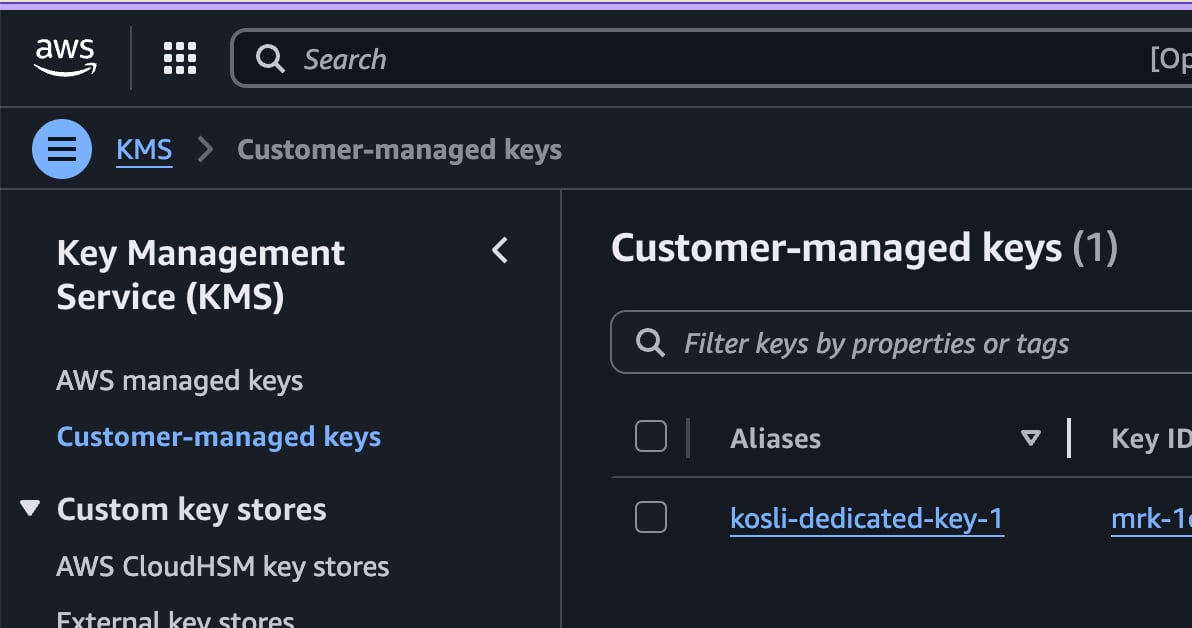 4. Click **Create key** in the top right to start the wizard.
### Step 1 — Configure the key
* **Key type:** Symmetric
* **Key usage:** Encrypt and decrypt
* Expand **Advanced options** and, under **Regionality**, select **Multi-region key**.
4. Click **Create key** in the top right to start the wizard.
### Step 1 — Configure the key
* **Key type:** Symmetric
* **Key usage:** Encrypt and decrypt
* Expand **Advanced options** and, under **Regionality**, select **Multi-region key**.
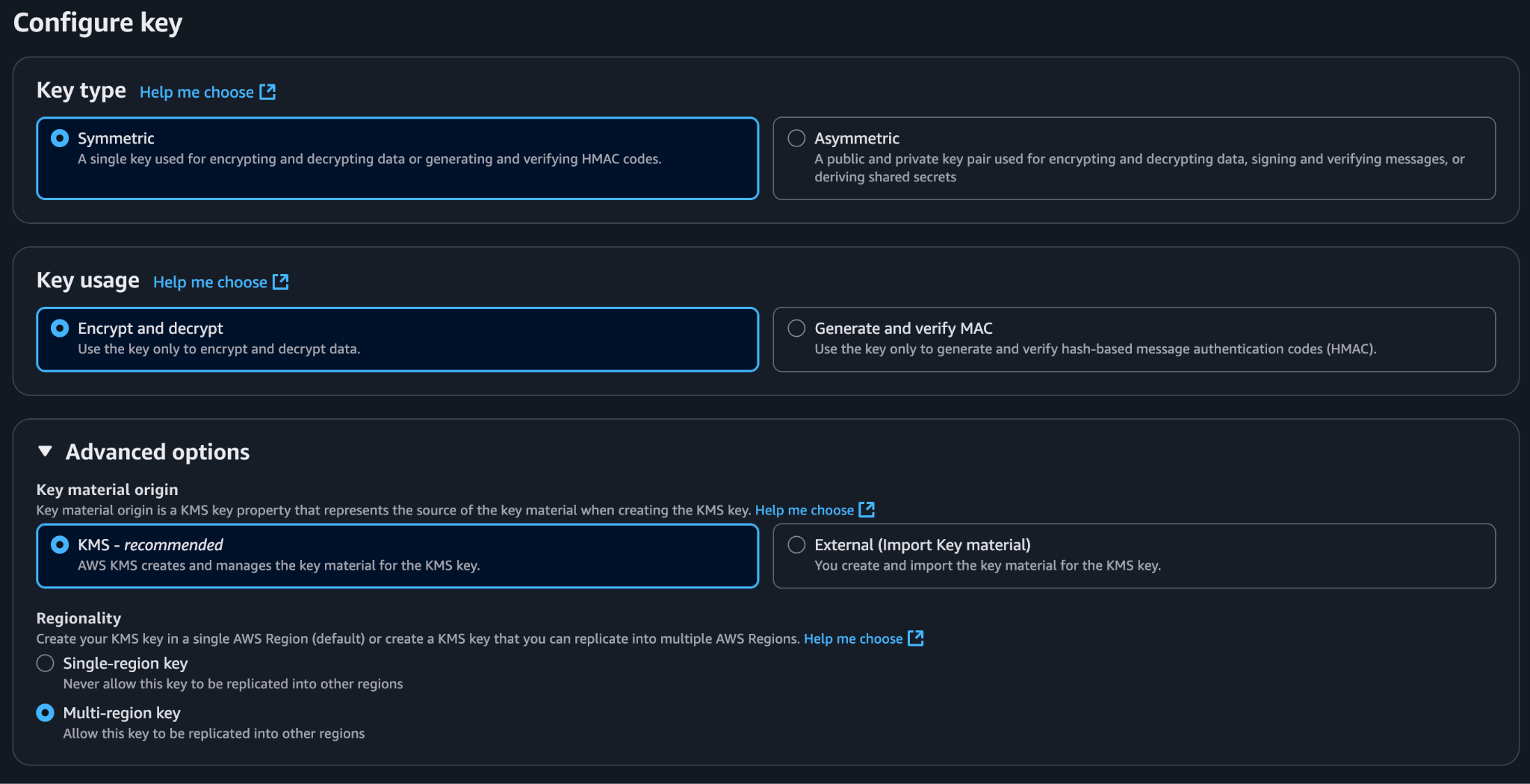 Selecting **Multi-region key** rules out a custom key store as the key material origin. You can still choose **KMS** or **External (Import Key material)**. If you need CloudHSM or an external key store, see [Single-region keys](#single-region-keys).
Click **Next**.
### Step 2 — Add labels
* **Alias:** use whatever labelling strategy your organization prefers, for example `alias/kosli-dedicated-cross-account-key`.
* Optionally add a description and tags to help your team.
Selecting **Multi-region key** rules out a custom key store as the key material origin. You can still choose **KMS** or **External (Import Key material)**. If you need CloudHSM or an external key store, see [Single-region keys](#single-region-keys).
Click **Next**.
### Step 2 — Add labels
* **Alias:** use whatever labelling strategy your organization prefers, for example `alias/kosli-dedicated-cross-account-key`.
* Optionally add a description and tags to help your team.
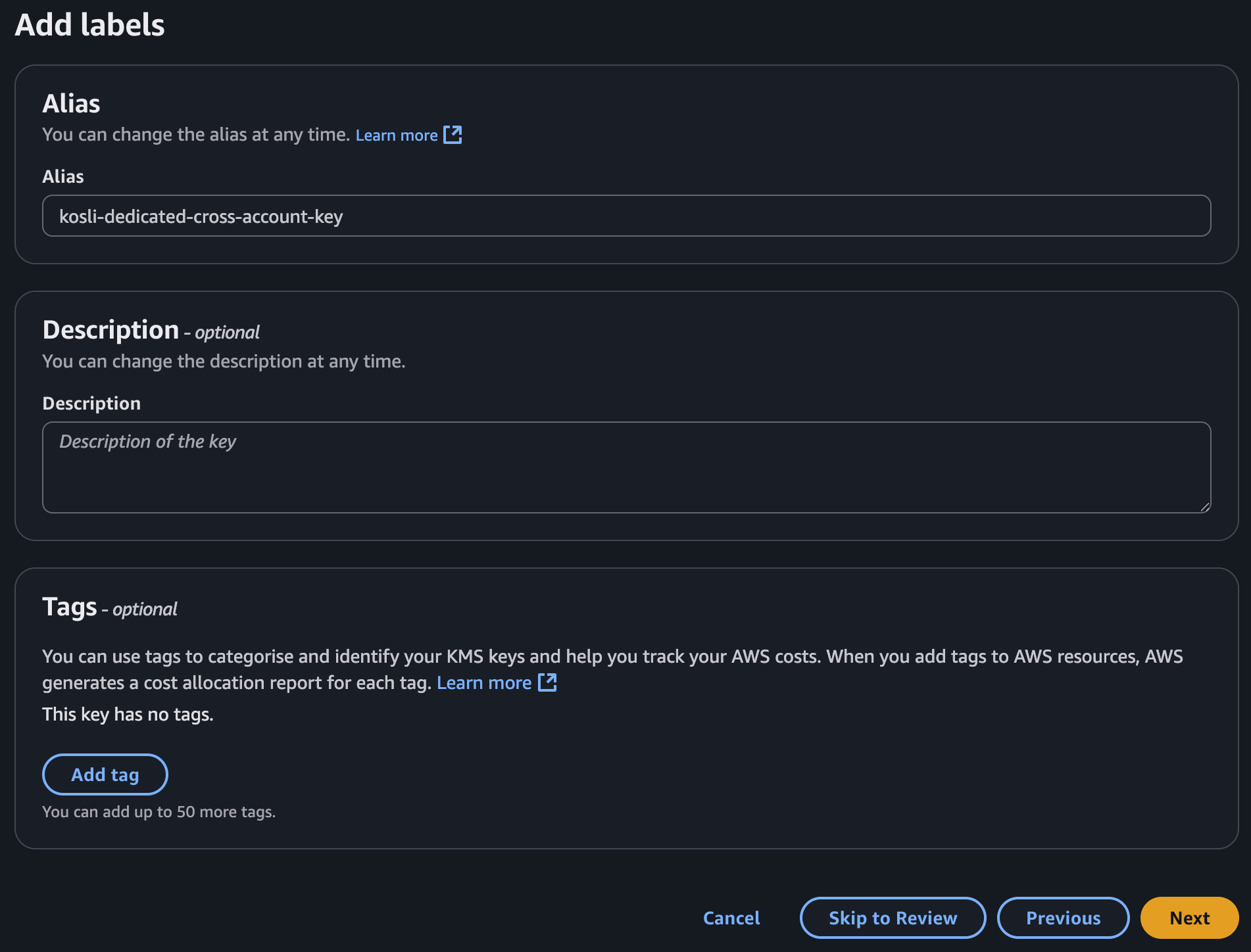 Click **Next**.
### Step 3 — Define key administrators
The key is not used from inside your AWS account, so there is usually no reason to add key administrators.
To protect against accidental deletion, untick **Allow key administrators to delete this key** under **Key deletion**.
Click **Next**.
### Step 3 — Define key administrators
The key is not used from inside your AWS account, so there is usually no reason to add key administrators.
To protect against accidental deletion, untick **Allow key administrators to delete this key** under **Key deletion**.
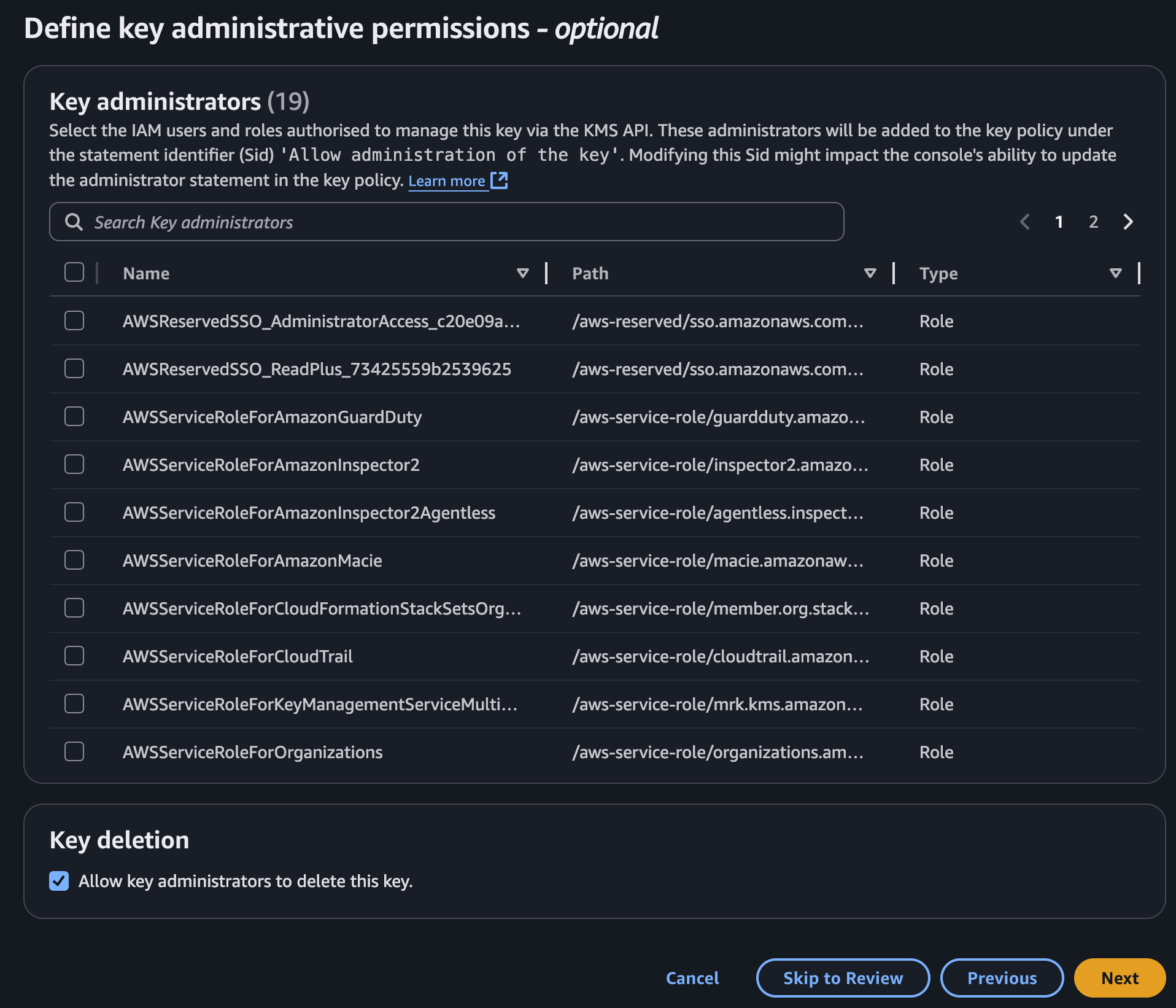 Click **Next**.
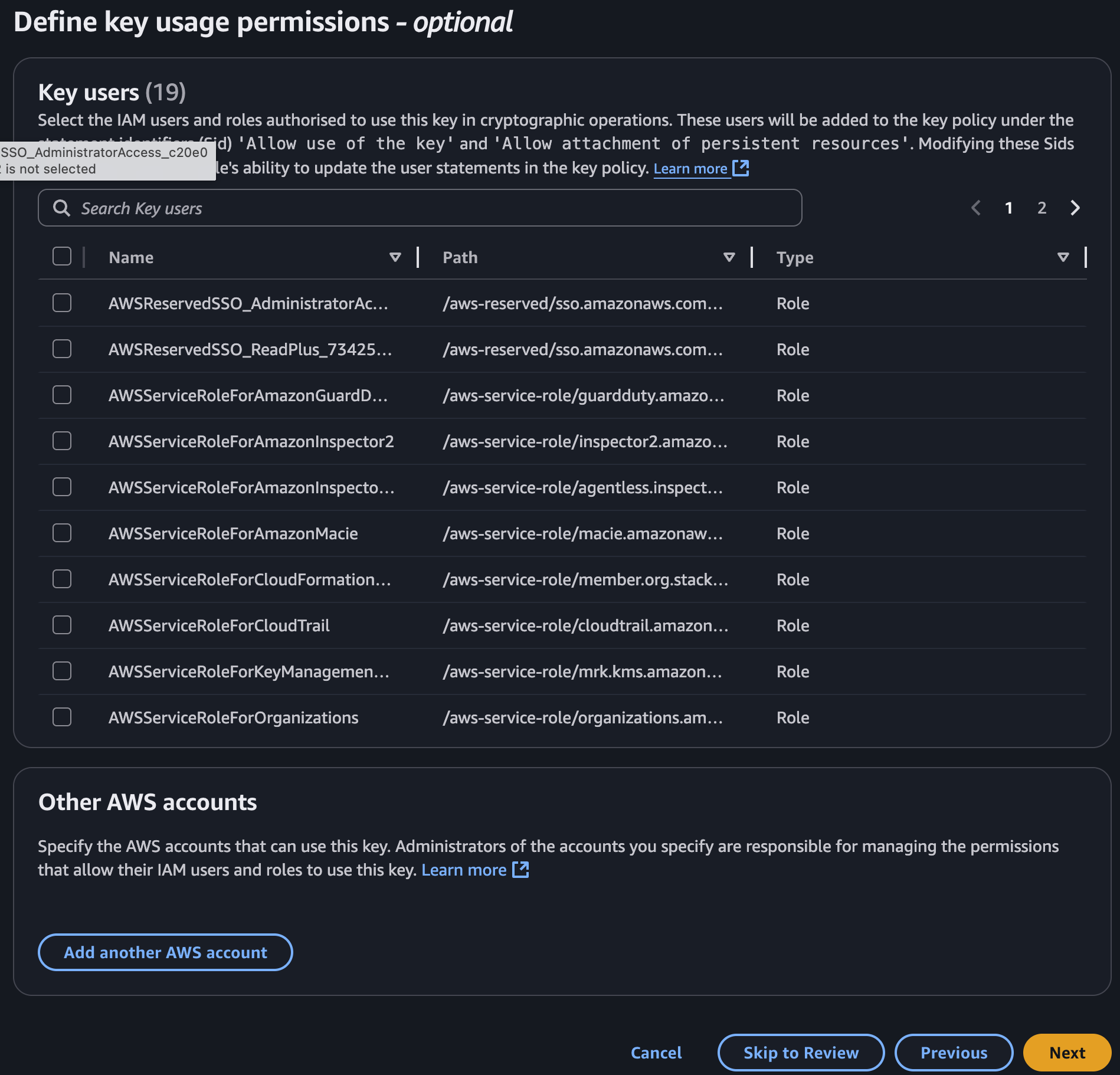
### Step 4 — Define key usage permissions
The key policy is managed as JSON on the next screen, so leave the usage permissions on this page unselected. Do **not** add an "Other AWS account" here either — cross-account access is granted via the JSON policy.
Click **Next**.
### Step 4 — Define key usage permissions
The key policy is managed as JSON on the next screen, so leave the usage permissions on this page unselected. Do **not** add an "Other AWS account" here either — cross-account access is granted via the JSON policy.
 Click **Next**.
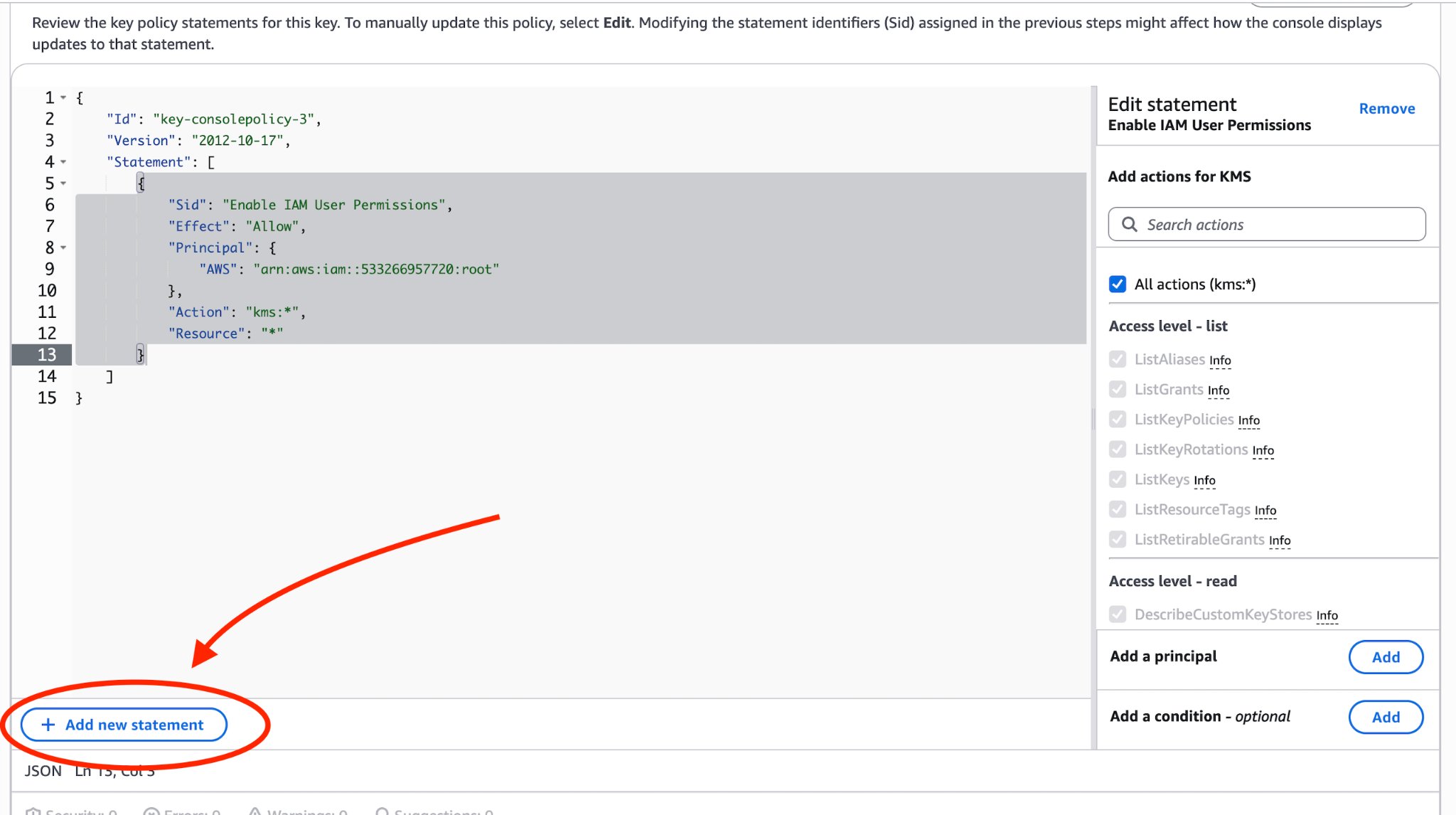
### Step 5 — Edit the key policy
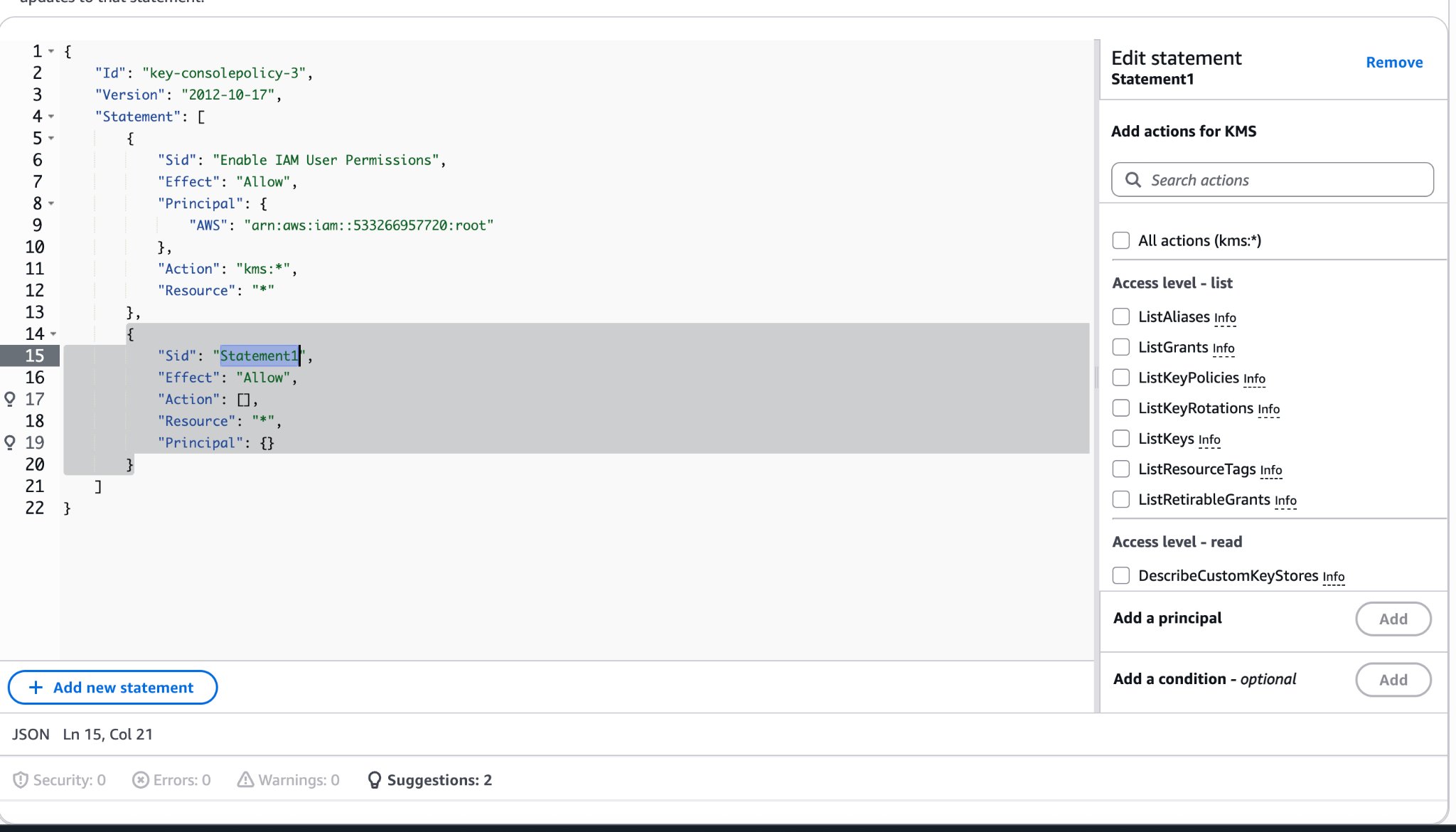
The console loads a default policy that grants access to your account root. Click **Edit**, then click **Add new statement** and add a **second statement** to the `Statement` array with the following content. A member of the Kosli Customer Success team will give you the value for `<>`.
Click **Next**.
### Step 5 — Edit the key policy
The console loads a default policy that grants access to your account root. Click **Edit**, then click **Add new statement** and add a **second statement** to the `Statement` array with the following content. A member of the Kosli Customer Success team will give you the value for `<>`.
 ```json theme={"theme":"dracula","languages":{"custom":["/languages/rego.json"]}}
{
"Sid": "Allow Kosli-Dedicated to use this KMS key",
"Effect": "Allow",
"Principal": {
"AWS": [
"arn:aws:iam::<>:root"
]
},
"Action": [
"kms:CreateGrant",
"kms:Encrypt",
"kms:Decrypt",
"kms:ReEncrypt*",
"kms:GenerateDataKey*",
"kms:DescribeKey"
],
"Resource": "*"
}
```
Make sure you add a comma between the existing statement object and this new one.
```json theme={"theme":"dracula","languages":{"custom":["/languages/rego.json"]}}
{
"Sid": "Allow Kosli-Dedicated to use this KMS key",
"Effect": "Allow",
"Principal": {
"AWS": [
"arn:aws:iam::<>:root"
]
},
"Action": [
"kms:CreateGrant",
"kms:Encrypt",
"kms:Decrypt",
"kms:ReEncrypt*",
"kms:GenerateDataKey*",
"kms:DescribeKey"
],
"Resource": "*"
}
```
Make sure you add a comma between the existing statement object and this new one.
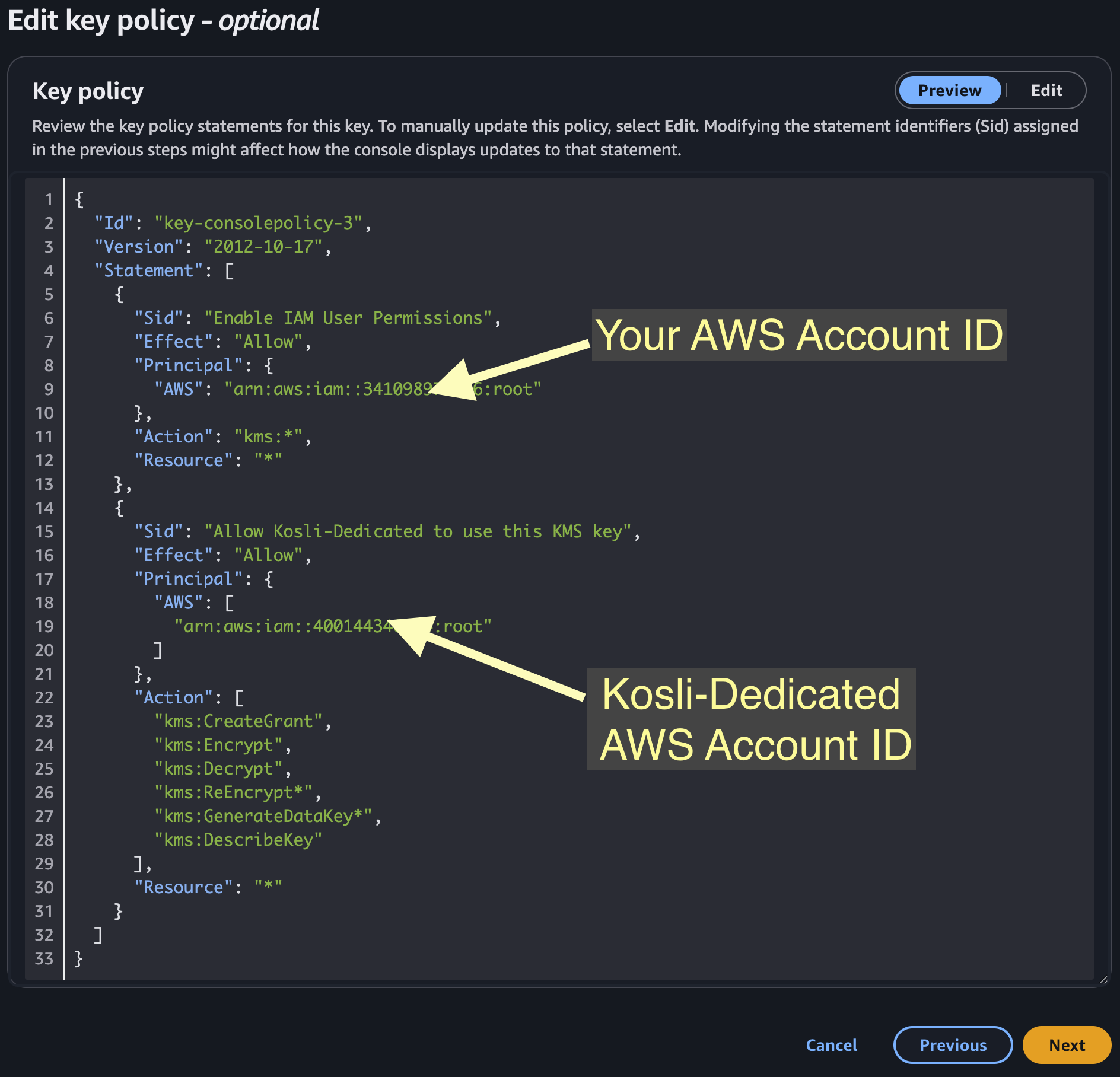
 Click **Preview** to format and validate the JSON. The preview shows both statements — one for your AWS account root, one for the Kosli-Dedicated account.
 Click **Next**.
For background on key policy syntax, see the [AWS key policies documentation](https://docs.aws.amazon.com/kms/latest/developerguide/key-policy-overview.html).
### Step 6 — Review and finish
Confirm the settings match:
| Field | Value |
| --------- | ------------------- |
| Key type | Symmetric |
| Key spec | `SYMMETRIC_DEFAULT` |
| Key usage | Encrypt and decrypt |
If anything needs changing, click **Edit** for that section. Otherwise click **Finish** to create the key. You are returned to the customer-managed keys list with the new key at the top.
## Replicate the key to the secondary region
1. Click the new key's alias to open its details.
2. Select the **Regionality** tab. The **Primary key** panel shows that the key has no replicas yet.
Click **Next**.
For background on key policy syntax, see the [AWS key policies documentation](https://docs.aws.amazon.com/kms/latest/developerguide/key-policy-overview.html).
### Step 6 — Review and finish
Confirm the settings match:
| Field | Value |
| --------- | ------------------- |
| Key type | Symmetric |
| Key spec | `SYMMETRIC_DEFAULT` |
| Key usage | Encrypt and decrypt |
If anything needs changing, click **Edit** for that section. Otherwise click **Finish** to create the key. You are returned to the customer-managed keys list with the new key at the top.
## Replicate the key to the secondary region
1. Click the new key's alias to open its details.
2. Select the **Regionality** tab. The **Primary key** panel shows that the key has no replicas yet.
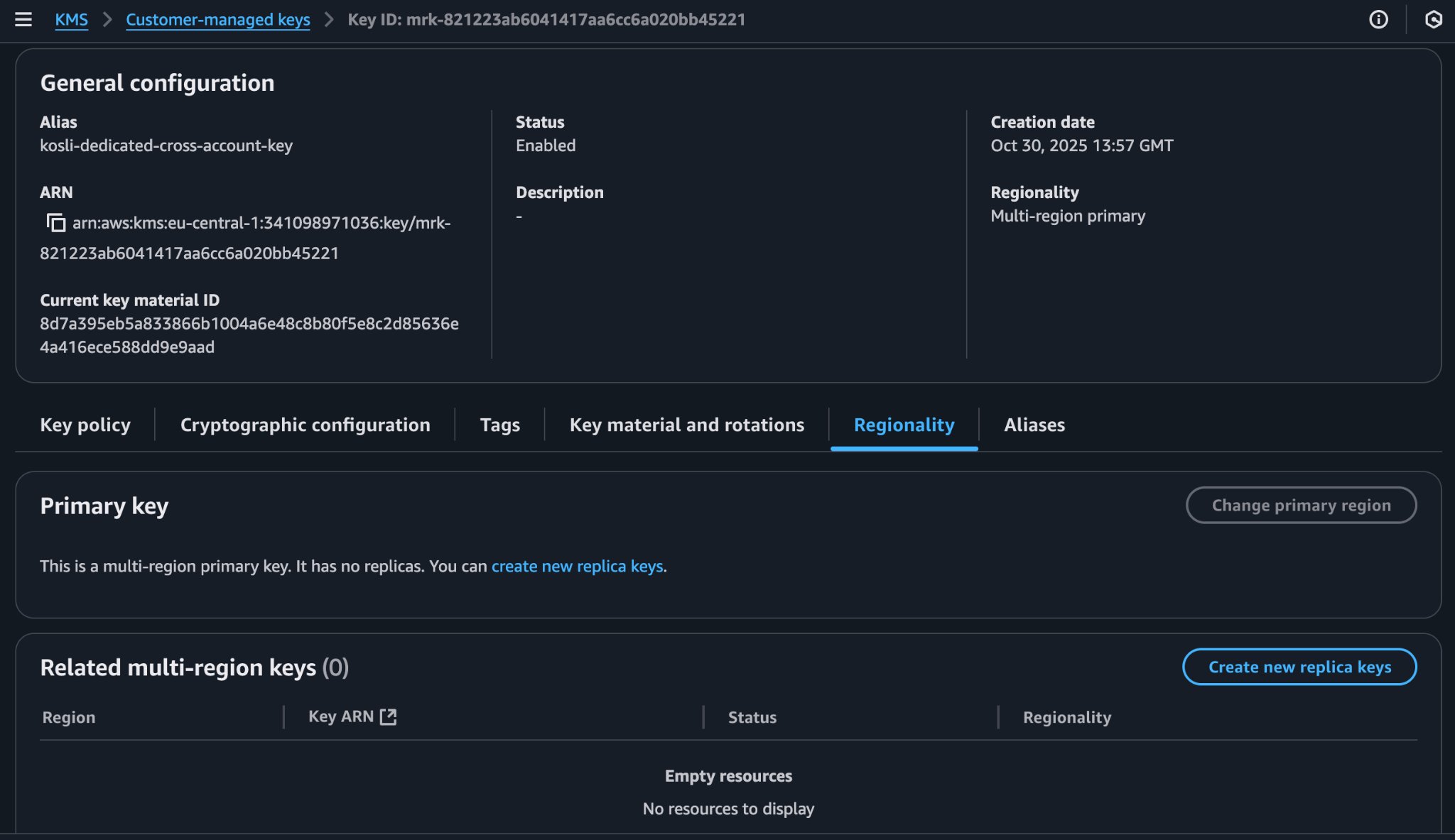 3. Click **Create new replica keys**.
4. In the region dropdown (which excludes the primary region), tick the **Kosli secondary region** and click **Next**.
3. Click **Create new replica keys**.
4. In the region dropdown (which excludes the primary region), tick the **Kosli secondary region** and click **Next**.
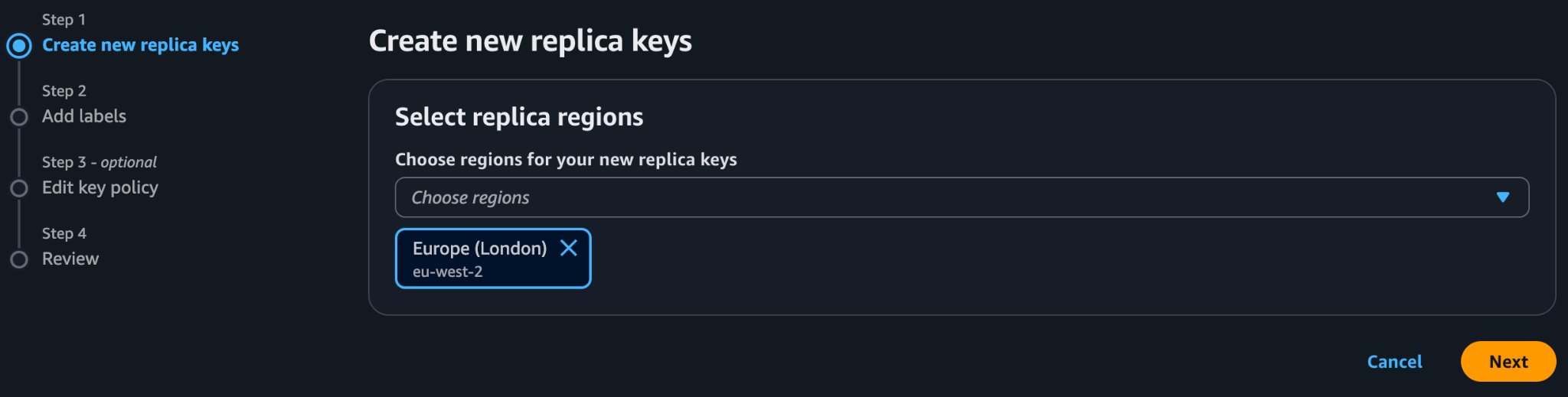 5. The **Add labels** screen is pre-populated from the primary key. Change if your organization requires it, otherwise click **Next**.
6. The console pre-populates the replica's policy from the primary key — no changes needed. Click **Next**.
7. Review the **Confirmation** message, tick the acknowledgement box, and click **Create new replica keys**.
The primary key's details page reloads with the replica listed under **Related multi-region keys**.
## Share the key ARNs with Kosli
Kosli uses the primary and replica keys to encrypt data. Send both ARNs to a member of the Kosli Customer Success team:
* The **primary key ARN** — from the **General configuration** panel of the primary key's details page.
* The **replica key ARN** — from the **Related multi-region keys** panel on the same page, or from the replica key's own details page in the secondary region.
5. The **Add labels** screen is pre-populated from the primary key. Change if your organization requires it, otherwise click **Next**.
6. The console pre-populates the replica's policy from the primary key — no changes needed. Click **Next**.
7. Review the **Confirmation** message, tick the acknowledgement box, and click **Create new replica keys**.
The primary key's details page reloads with the replica listed under **Related multi-region keys**.
## Share the key ARNs with Kosli
Kosli uses the primary and replica keys to encrypt data. Send both ARNs to a member of the Kosli Customer Success team:
* The **primary key ARN** — from the **General configuration** panel of the primary key's details page.
* The **replica key ARN** — from the **Related multi-region keys** panel on the same page, or from the replica key's own details page in the secondary region.
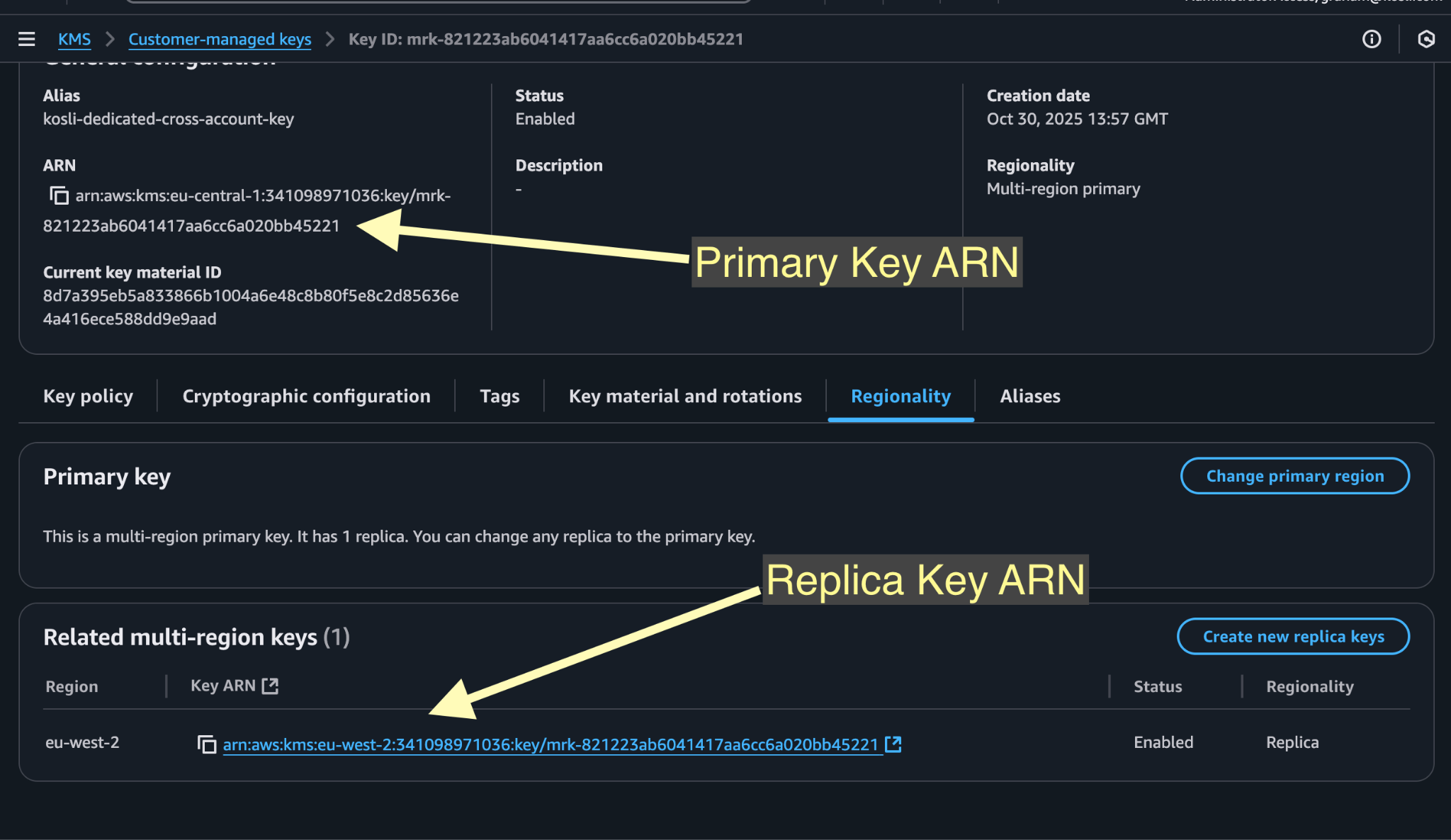 For a multi-region key the two ARNs are identical except for the region segment.
A key ARN is an identifier, not a secret: only the AWS account named in the key policy can use the key, so the ARNs can be shared over email.
## Single-region keys
If your organization requires a CloudHSM key store (or an external key store) for the key material, create **two single-region keys** instead of one replicated multi-region key.
The steps to create the primary key are the same as above, with two differences:
* **Do not** tick **Multi-region key** under **Regionality**.
* Under **Key material origin**, select your CloudHSM key store (or external key store) rather than KMS.
Once the primary key exists, switch the console to the **secondary Kosli region** and repeat the process. Include a reference to the primary key's ARN or alias in the secondary key's **Description** so the pairing is obvious later.
Share both ARNs with a member of the Kosli Customer Success team. Unlike a multi-region key, the two single-region ARNs differ beyond just the region segment.
## Terraform example
The following is the minimum Terraform needed to create the multi-region key and its replica for Kosli Dedicated. Set `primary_aws_region`, `secondary_aws_region`, and `kosli_dedicated_account_id` for your instance.
This example uses the top-level `region` argument on `aws_kms_key`, `aws_kms_alias`, and `aws_kms_replica_key`, which requires **AWS provider v6.0 or later**. On earlier versions, use aliased provider blocks instead.
```hcl theme={"theme":"dracula","languages":{"custom":["/languages/rego.json"]}}
variable "primary_aws_region" {
type = string
description = "Primary AWS region for your Kosli Dedicated instance"
}
variable "secondary_aws_region" {
type = string
description = "Secondary AWS region for your Kosli Dedicated instance"
}
variable "kosli_dedicated_account_id" {
type = string
description = "Kosli AWS account ID, supplied by the Kosli Customer Success team"
}
data "aws_caller_identity" "current" {}
resource "aws_kms_key" "primary" {
description = "Multi-region key for Kosli-Dedicated"
deletion_window_in_days = 30
multi_region = true
region = var.primary_aws_region
key_usage = "ENCRYPT_DECRYPT"
customer_master_key_spec = "SYMMETRIC_DEFAULT"
policy = jsonencode({
Version = "2012-10-17"
Id = "kosli-dedicated-kms"
Statement = [
{
Sid = "Enable IAM User Permissions"
Effect = "Allow"
Principal = {
AWS = "arn:aws:iam::${data.aws_caller_identity.current.account_id}:root"
}
Action = "kms:*"
Resource = "*"
},
{
Sid = "Allow Kosli-Dedicated to use this KMS key"
Effect = "Allow"
Principal = {
AWS = "arn:aws:iam::${var.kosli_dedicated_account_id}:root"
}
Action = [
"kms:CreateGrant",
"kms:Encrypt",
"kms:Decrypt",
"kms:ReEncrypt*",
"kms:GenerateDataKey*",
"kms:DescribeKey"
]
Resource = "*"
}
]
})
}
resource "aws_kms_alias" "primary_alias" {
region = var.primary_aws_region
name = "alias/kosli-dedicated-cross-account-key"
target_key_id = aws_kms_key.primary.key_id
}
resource "aws_kms_replica_key" "replica" {
region = var.secondary_aws_region
description = "Multi-region replica key"
deletion_window_in_days = 30
primary_key_arn = aws_kms_key.primary.arn
policy = aws_kms_key.primary.policy
}
resource "aws_kms_alias" "replica_alias" {
region = var.secondary_aws_region
name = "alias/kosli-dedicated-cross-account-key"
target_key_id = aws_kms_replica_key.replica.key_id
}
```
For a multi-region key the two ARNs are identical except for the region segment.
A key ARN is an identifier, not a secret: only the AWS account named in the key policy can use the key, so the ARNs can be shared over email.
## Single-region keys
If your organization requires a CloudHSM key store (or an external key store) for the key material, create **two single-region keys** instead of one replicated multi-region key.
The steps to create the primary key are the same as above, with two differences:
* **Do not** tick **Multi-region key** under **Regionality**.
* Under **Key material origin**, select your CloudHSM key store (or external key store) rather than KMS.
Once the primary key exists, switch the console to the **secondary Kosli region** and repeat the process. Include a reference to the primary key's ARN or alias in the secondary key's **Description** so the pairing is obvious later.
Share both ARNs with a member of the Kosli Customer Success team. Unlike a multi-region key, the two single-region ARNs differ beyond just the region segment.
## Terraform example
The following is the minimum Terraform needed to create the multi-region key and its replica for Kosli Dedicated. Set `primary_aws_region`, `secondary_aws_region`, and `kosli_dedicated_account_id` for your instance.
This example uses the top-level `region` argument on `aws_kms_key`, `aws_kms_alias`, and `aws_kms_replica_key`, which requires **AWS provider v6.0 or later**. On earlier versions, use aliased provider blocks instead.
```hcl theme={"theme":"dracula","languages":{"custom":["/languages/rego.json"]}}
variable "primary_aws_region" {
type = string
description = "Primary AWS region for your Kosli Dedicated instance"
}
variable "secondary_aws_region" {
type = string
description = "Secondary AWS region for your Kosli Dedicated instance"
}
variable "kosli_dedicated_account_id" {
type = string
description = "Kosli AWS account ID, supplied by the Kosli Customer Success team"
}
data "aws_caller_identity" "current" {}
resource "aws_kms_key" "primary" {
description = "Multi-region key for Kosli-Dedicated"
deletion_window_in_days = 30
multi_region = true
region = var.primary_aws_region
key_usage = "ENCRYPT_DECRYPT"
customer_master_key_spec = "SYMMETRIC_DEFAULT"
policy = jsonencode({
Version = "2012-10-17"
Id = "kosli-dedicated-kms"
Statement = [
{
Sid = "Enable IAM User Permissions"
Effect = "Allow"
Principal = {
AWS = "arn:aws:iam::${data.aws_caller_identity.current.account_id}:root"
}
Action = "kms:*"
Resource = "*"
},
{
Sid = "Allow Kosli-Dedicated to use this KMS key"
Effect = "Allow"
Principal = {
AWS = "arn:aws:iam::${var.kosli_dedicated_account_id}:root"
}
Action = [
"kms:CreateGrant",
"kms:Encrypt",
"kms:Decrypt",
"kms:ReEncrypt*",
"kms:GenerateDataKey*",
"kms:DescribeKey"
]
Resource = "*"
}
]
})
}
resource "aws_kms_alias" "primary_alias" {
region = var.primary_aws_region
name = "alias/kosli-dedicated-cross-account-key"
target_key_id = aws_kms_key.primary.key_id
}
resource "aws_kms_replica_key" "replica" {
region = var.secondary_aws_region
description = "Multi-region replica key"
deletion_window_in_days = 30
primary_key_arn = aws_kms_key.primary.arn
policy = aws_kms_key.primary.policy
}
resource "aws_kms_alias" "replica_alias" {
region = var.secondary_aws_region
name = "alias/kosli-dedicated-cross-account-key"
target_key_id = aws_kms_replica_key.replica.key_id
}
```